Social media is not a marketing problem. It's an operations problem.
This tutorial walks you step-by-step through building a complete, automated content system in monday.com that supports:
X, YouTube, Shorts, Blog, Instagram, LinkedIn, TikTok, Facebook, and Facebook Video.
You'll build:
- 5 boards
- 12 automations
- a clean cross-platform workflow
- and a reporting layer
System Flow
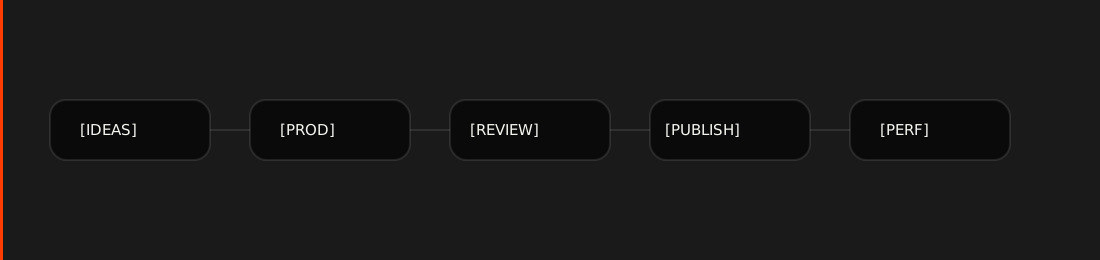
STEP 1 — Create the Ideas Board
Board name: [IDEAS] Content Ideas
Columns
| Name | Type |
|---|---|
| Content Idea | Item name |
| Platform | Dropdown |
| Content Type | Dropdown |
| Theme | Dropdown |
| Priority | Status |
| Owner | People |
| Status | Status (New, Approved, Rejected) |
Automations on [IDEAS]
Automation 1 — Promote idea to production
Recipe:
When status changes to Approved → create an item in board [PROD] Content Production and connect them
Automation 2 — Set ownership
Recipe:
When item is created → set Owner to person who created item
STEP 2 — Create the Production Board
Board name: [PROD] Content Production
Columns
| Name | Type |
|---|---|
| Content Title | Item |
| Platform | Dropdown |
| Content Type | Dropdown |
| Draft | Long Text |
| Assets | Files |
| Owner | People |
| Due Date | Date |
| Status | Status (Writing, Filming, Editing, Ready for Review) |
Automations on [PROD]
Automation 3 — Send to review
Recipe:
When status changes to Ready for Review → create item in board [REVIEW] Content Review and connect them
Automation 4 — Notify reviewer
Recipe:
When status changes to Ready for Review → notify Reviewer "New content ready for review"
STEP 3 — Create the Review Board
Board name: [REVIEW] Content Review
Columns
| Name | Type |
|---|---|
| Content | Connect Boards (to PROD) |
| Reviewer | People |
| Feedback | Long Text |
| Status | Status (Pending, Changes Requested, Approved, Rejected) |
Automations on [REVIEW]
Automation 5 — Notify changes
Recipe:
When status changes to Changes Requested → notify Owner in connected board
Automation 6 — Approve to publish
Recipe:
When status changes to Approved → create item in board [PUBLISH] Scheduling and connect them
STEP 4 — Create the Publishing Board
Board name: [PUBLISH] Scheduling
Columns
| Name | Type |
|---|---|
| Content | Connect Boards (to PROD) |
| Platform | Dropdown |
| Scheduled Date | Date |
| Scheduled Time | Time |
| Publishing Status | Status (Scheduled, Published, Failed) |
| Post URL | Link |
Automations on [PUBLISH]
Automation 7 — Send to scheduler
Recipe:
When Publishing Status changes to Scheduled → trigger webhook / integration (Make, Zapier)
Automation 8 — Notify failures
Recipe:
When Publishing Status changes to Failed → notify Owner
Automation 9 — Promote to performance
Recipe:
When Publishing Status changes to Published → create item in board [PERF] Content Performance and connect them
STEP 5 — Create the Performance Board
Board name: [PERF] Content Performance
Columns
| Name | Type |
|---|---|
| Content | Connect Boards (to PROD) |
| Platform | Dropdown |
| Publish Date | Date |
| Views | Numbers |
| Likes | Numbers |
| Comments | Numbers |
| Shares | Numbers |
| Engagement Rate | Formula |
Formula example:
( {Likes} + {Comments} + {Shares} ) / {Views}
Automations on [PERF]
Automation 10 — Archive low performers
Recipe:
When Engagement Rate is less than 0.02 → set Status to Archived
(optional)
Platform Dropdown Values
Use the same list everywhere:
- X
- YouTube
- YouTube Shorts
- Blog
- TikTok
- Facebook Video
Dashboards
Content Ops Dashboard
- Items by Status
- Overdue production
- Upcoming scheduled
Performance Dashboard
- Views by Platform
- Engagement by Content Type
- Top 10 posts
Scaling
| Scenario | Adjustment |
|---|---|
| Solo creator | Merge REVIEW into PROD |
| Small team | As-is |
| Agency | Duplicate per client workspace |
| Enterprise | Add Portfolio layer |
Final Checklist
- [ ] Boards created
- [ ] Automations configured
- [ ] Dropdowns standardised
- [ ] Dashboards built
- [ ] Scheduler integrated
Summary
You didn't build a content calendar.
You built a content operating system.
And now it scales.